
 v1Now on GNOME 50 and Ubuntu 26.04 LTS
Focus lives in your top bar.
PanelMate is a native GNOME Shell extension for countdowns, Pomodoro, stopwatch laps and an honest record of where your time went. One click away, never in your way.
Free · GNOME Shell 46 & 50 · No account · Works offline
- clock styles
- 15
- custom presets, 1–99 min
- 6
- sessions kept, up to 2 years
- 20,000
- accounts or servers
- 0
Four tabs. One popover.
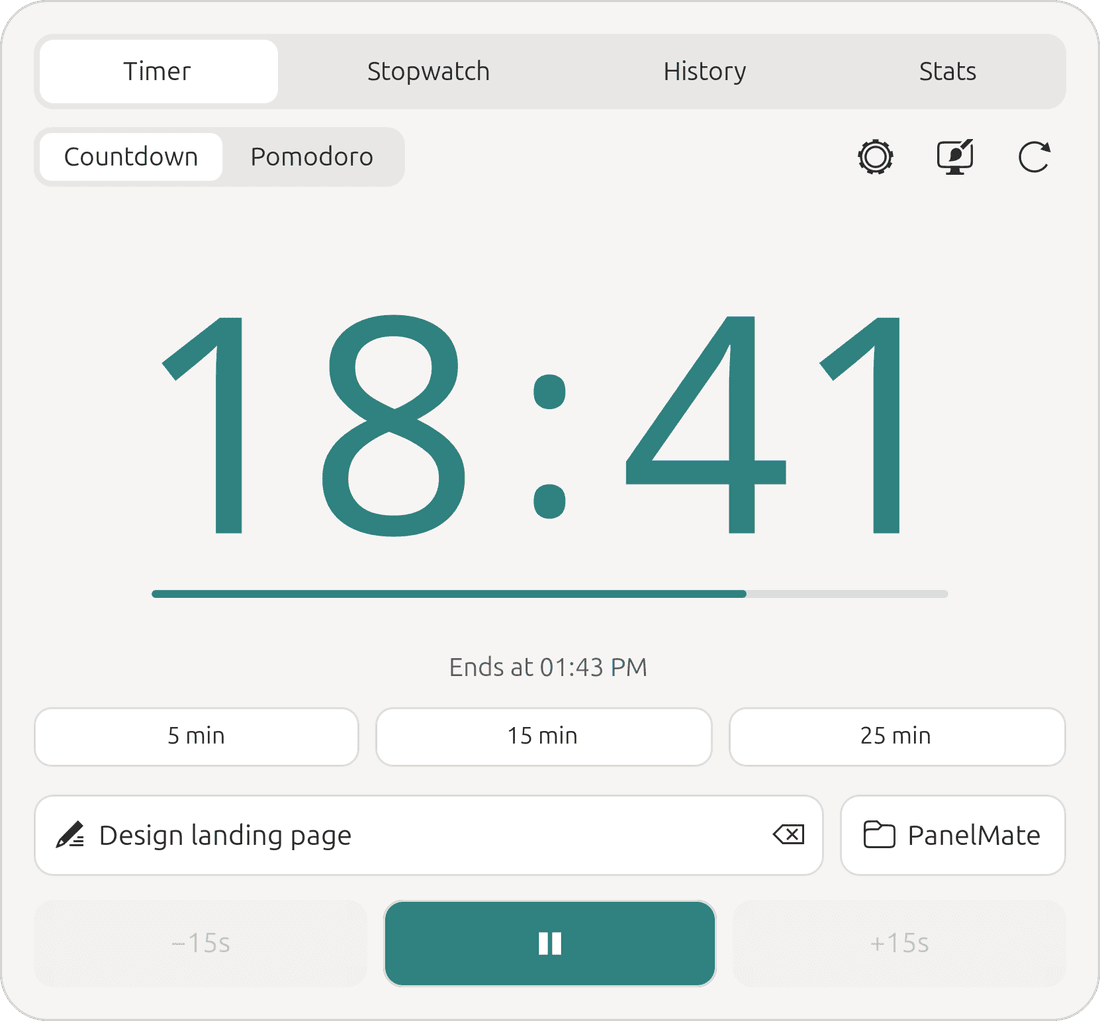
Everything opens from the PanelMate icon in your top bar and closes the moment you click away.
Timer
Countdown or Pomodoro, presets, and the task you’re working on.
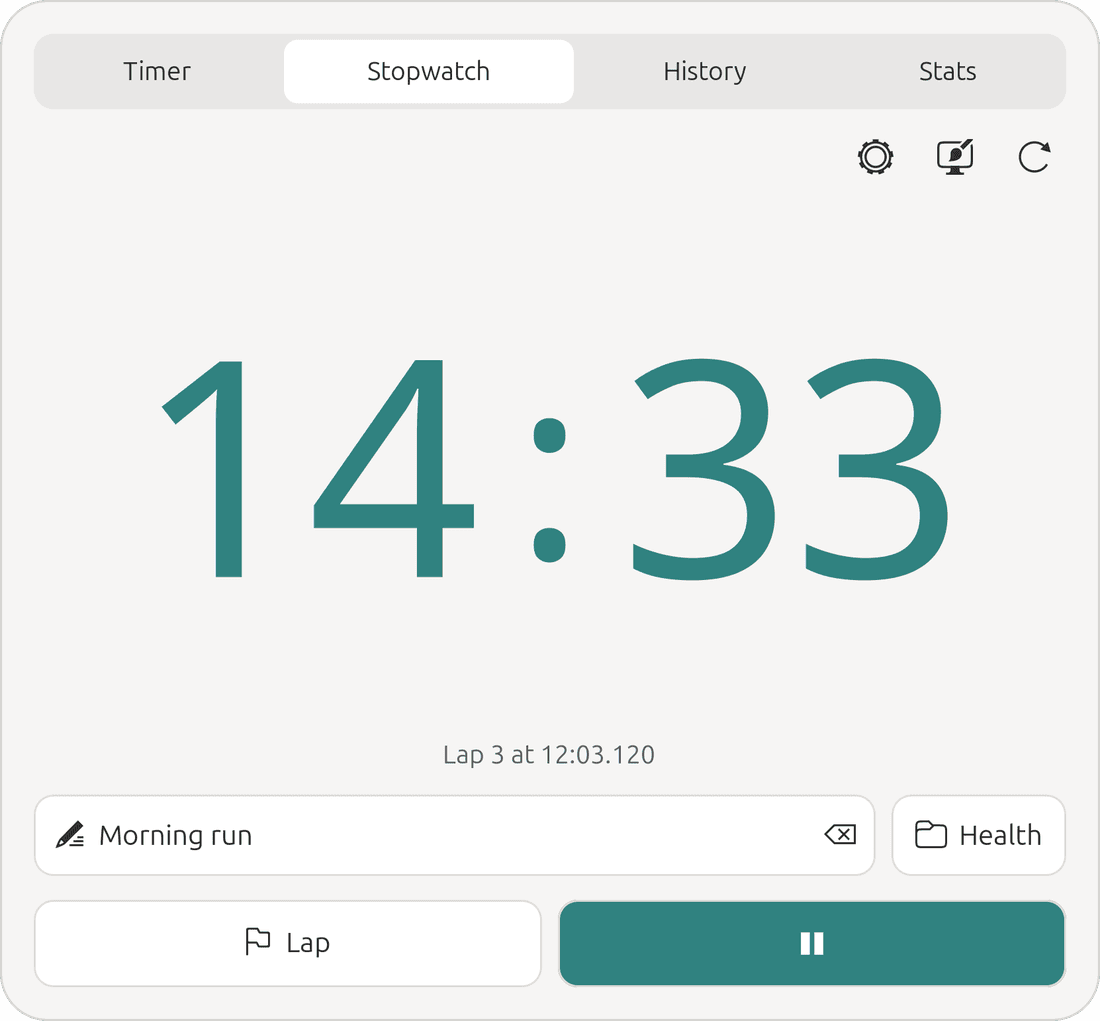
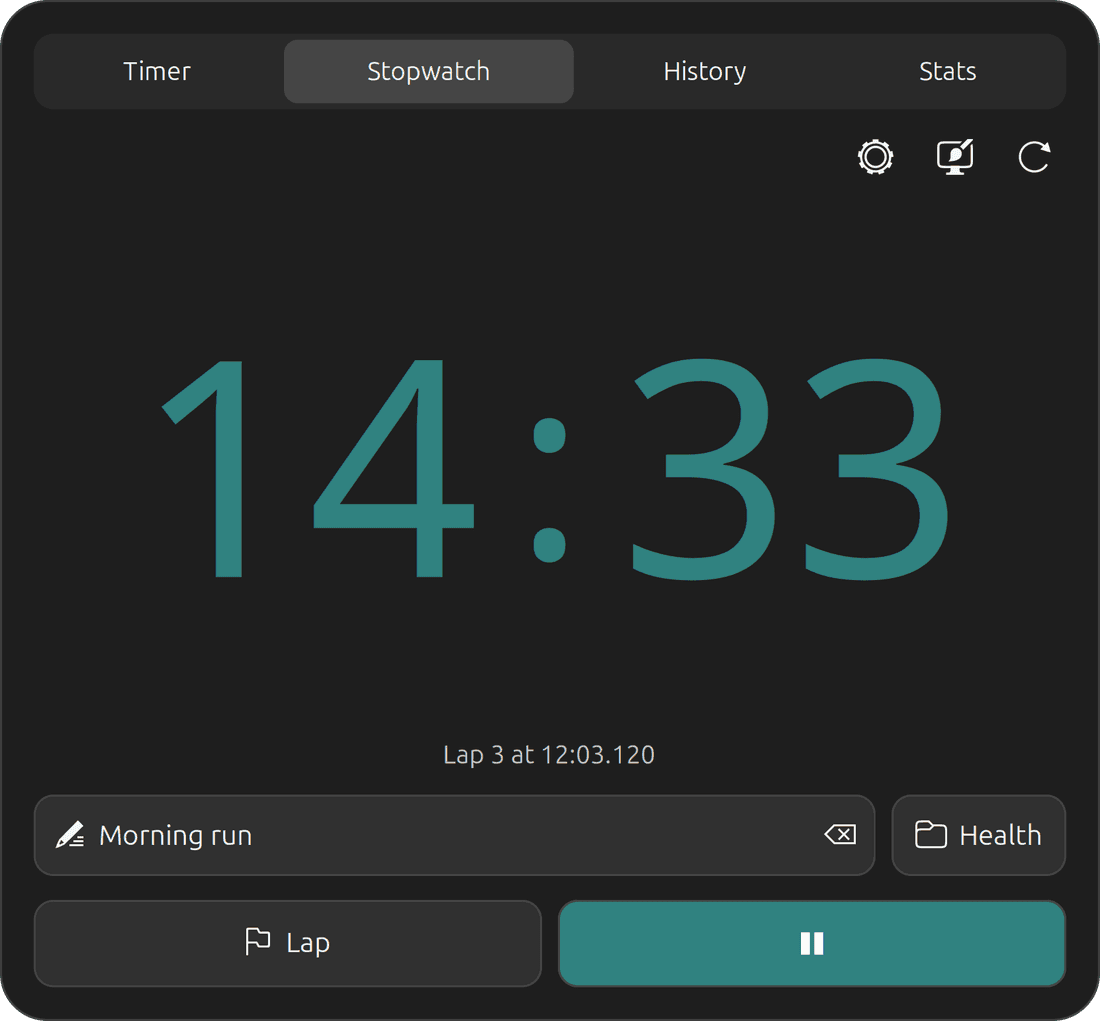
Stopwatch
Elapsed time with laps. Reset saves the session to History.
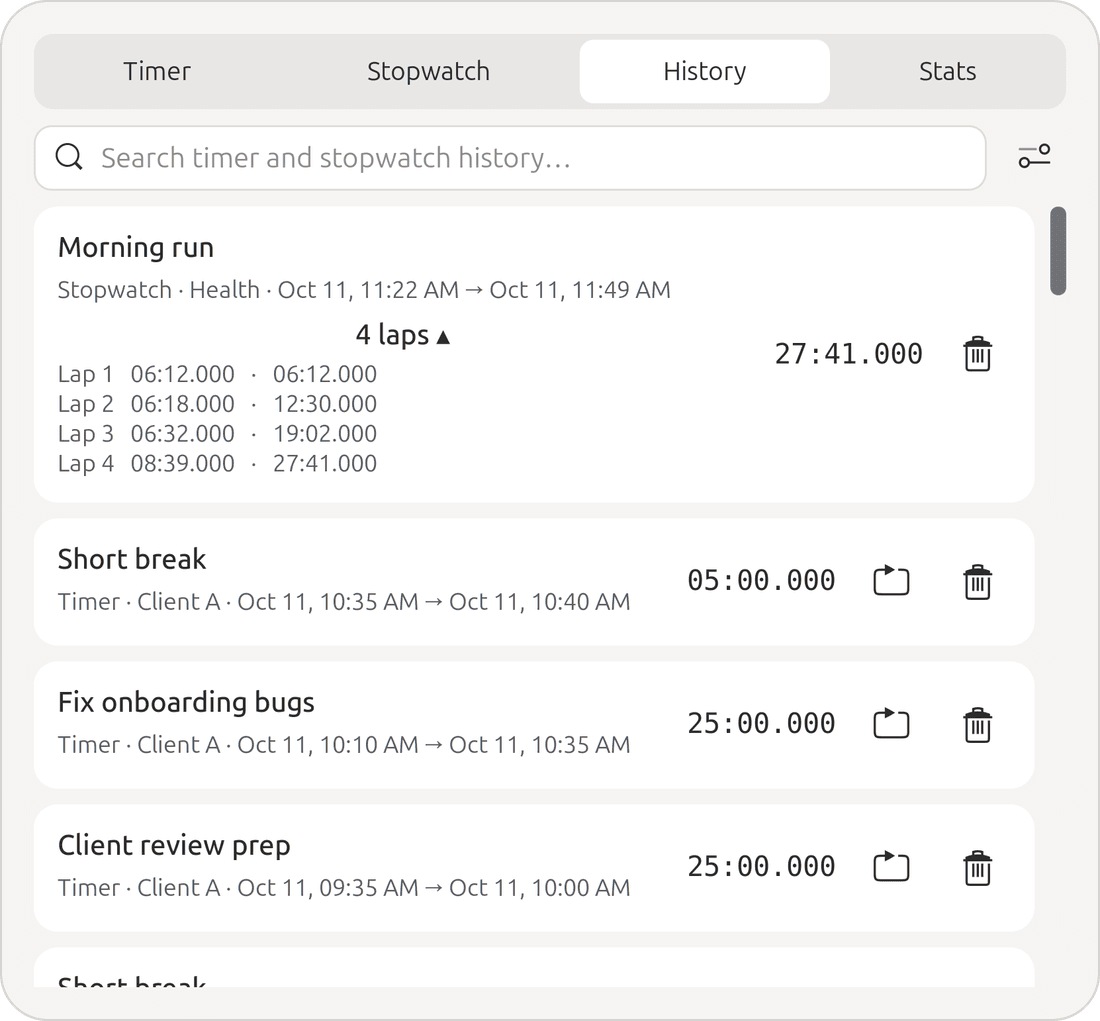
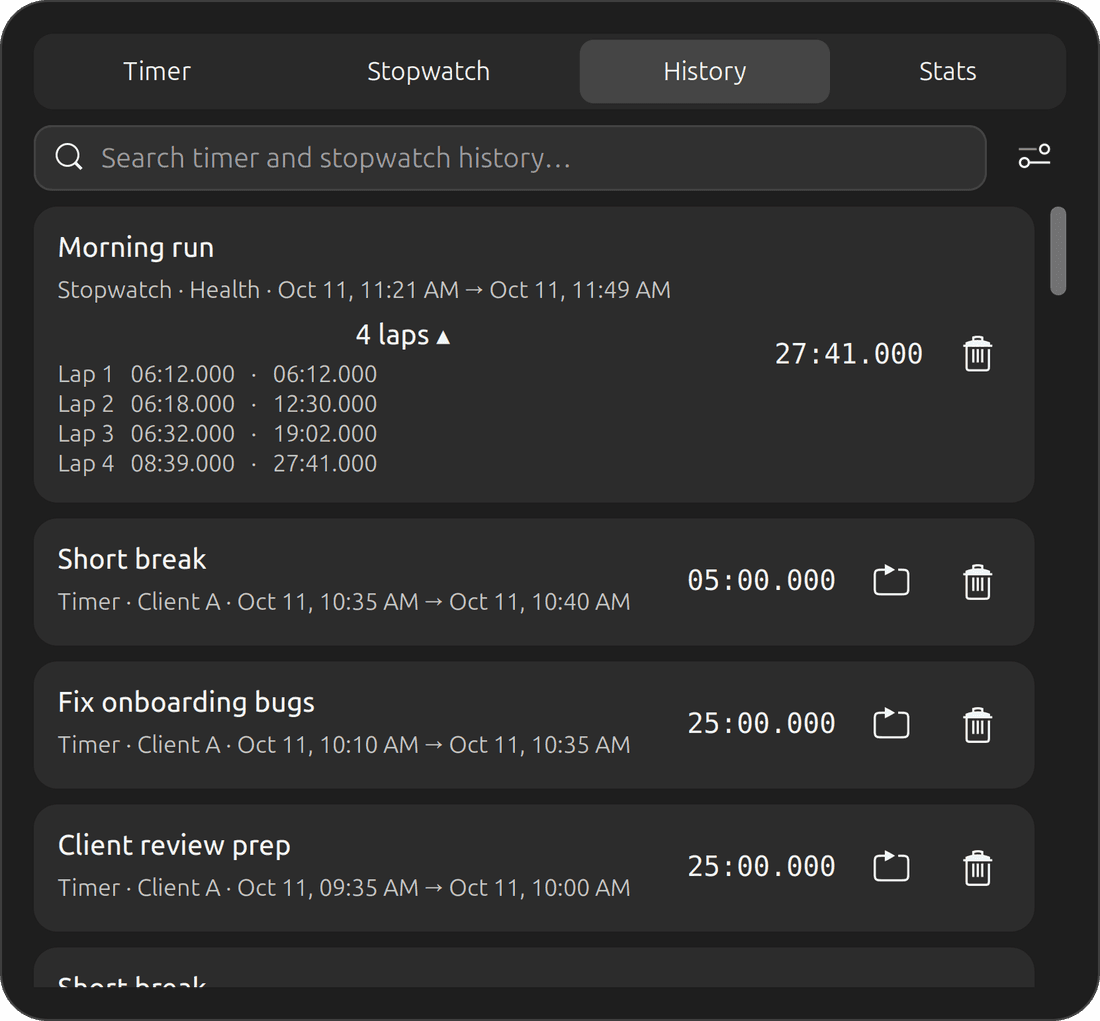
History
Every timer and stopwatch session, searchable and filterable by project, with laps you can expand.
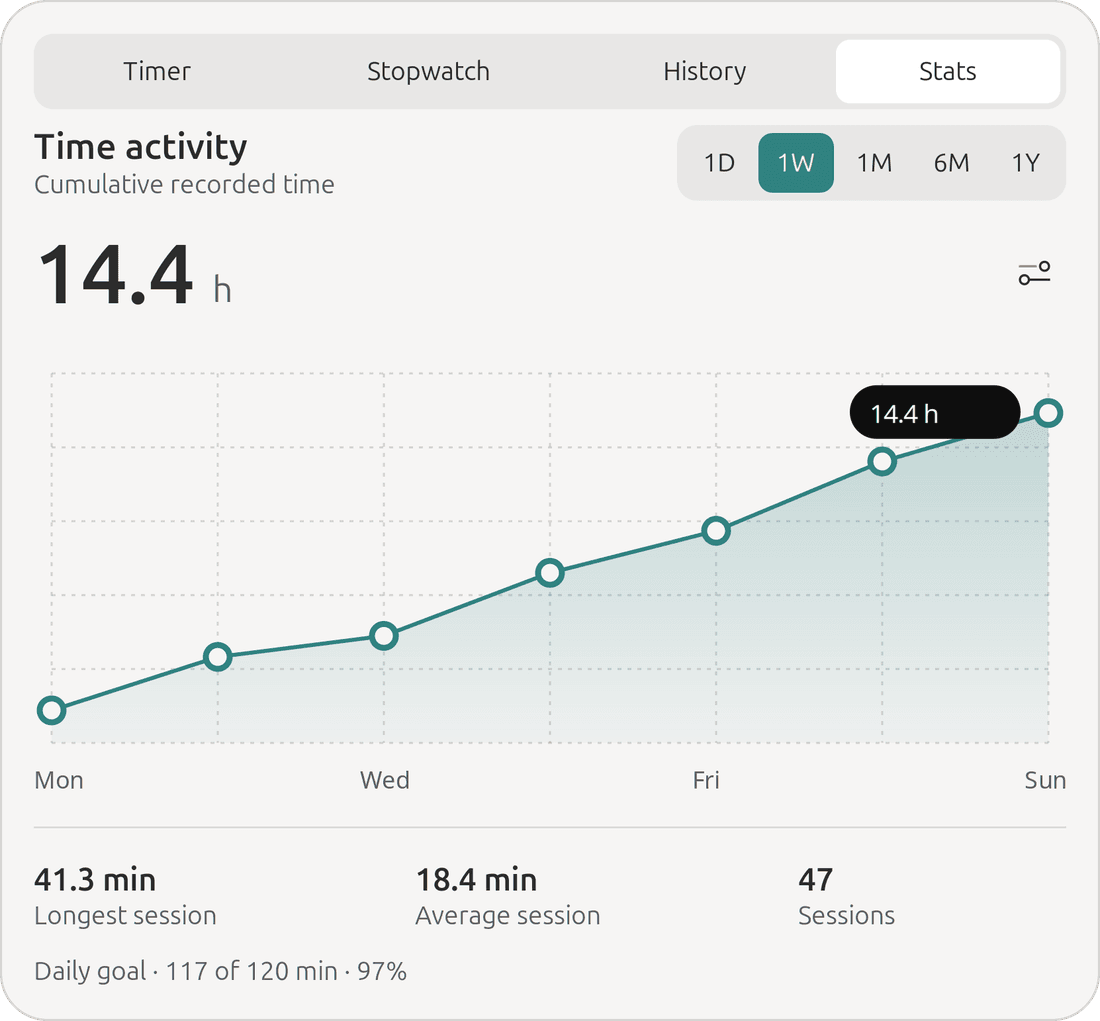
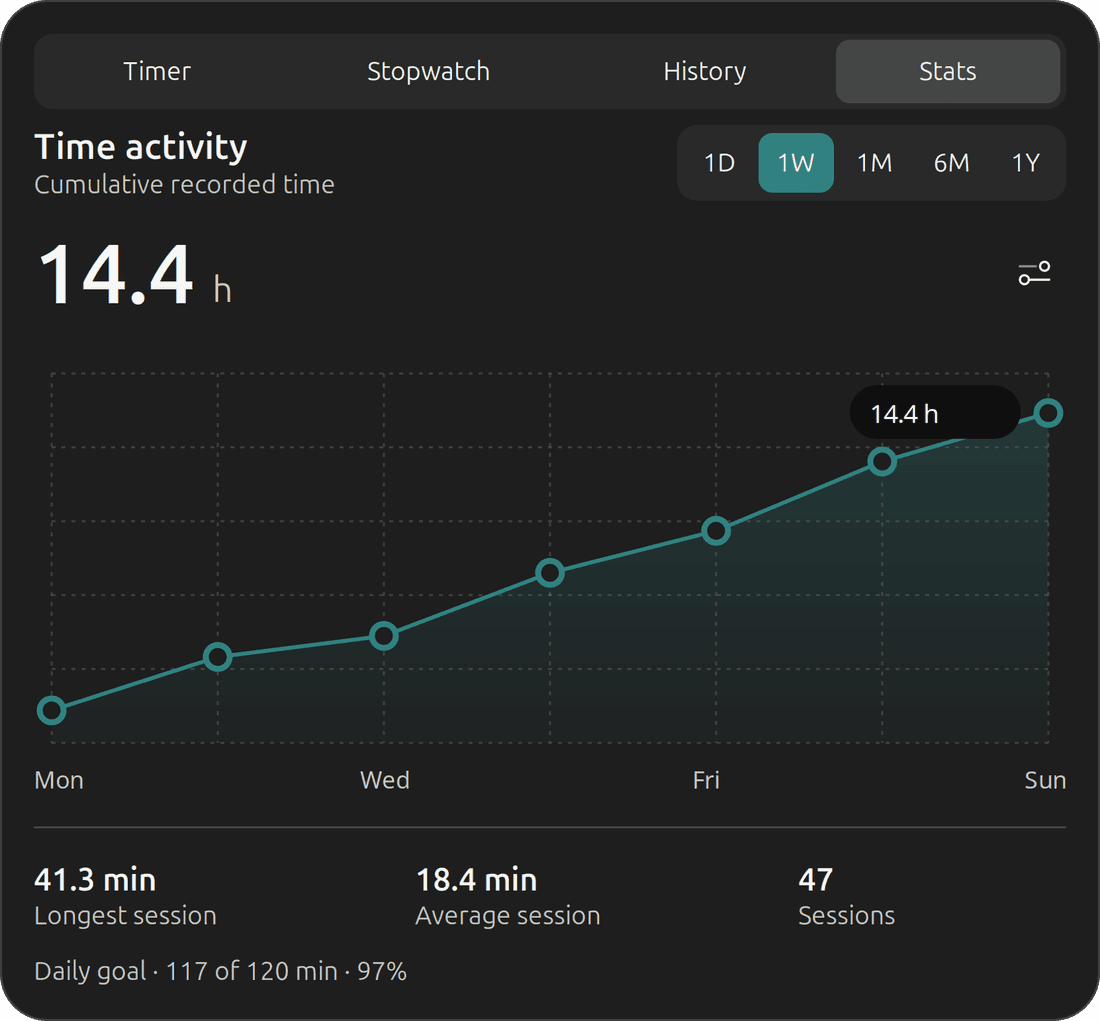
Stats
Cumulative time from a day to a year, with longest and average session and your daily goal.
And a little more inside.
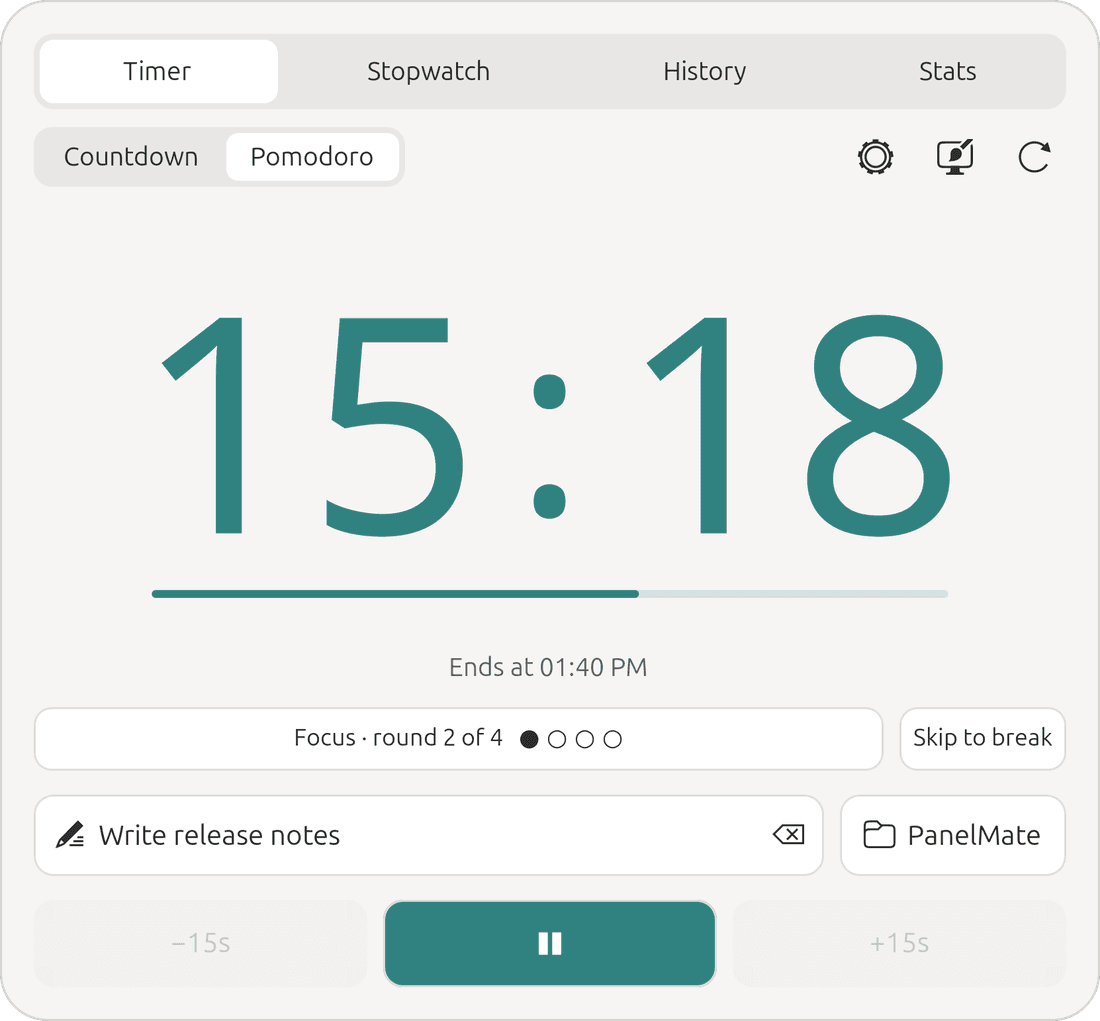
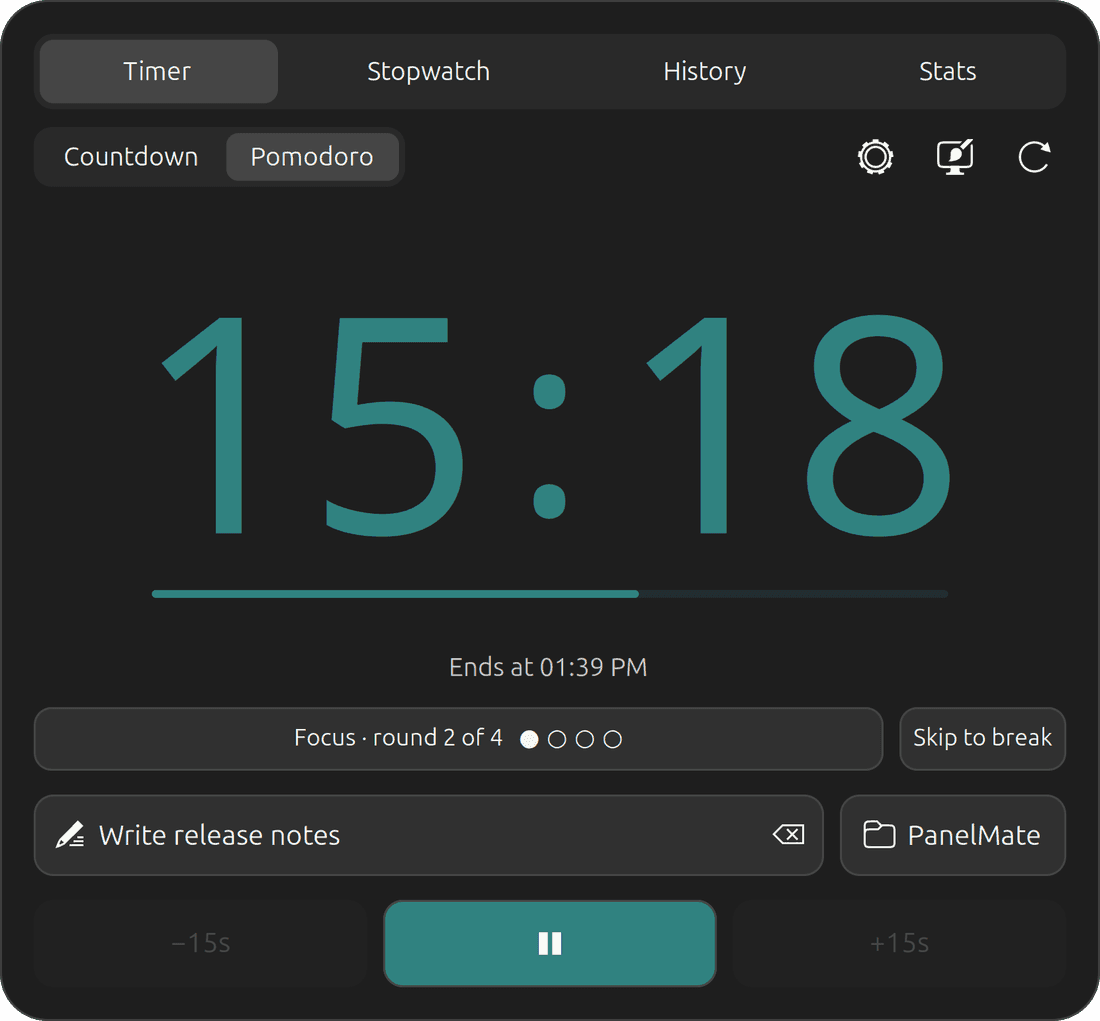
Pomodoro
Focus rounds with a skip button and progress dots.
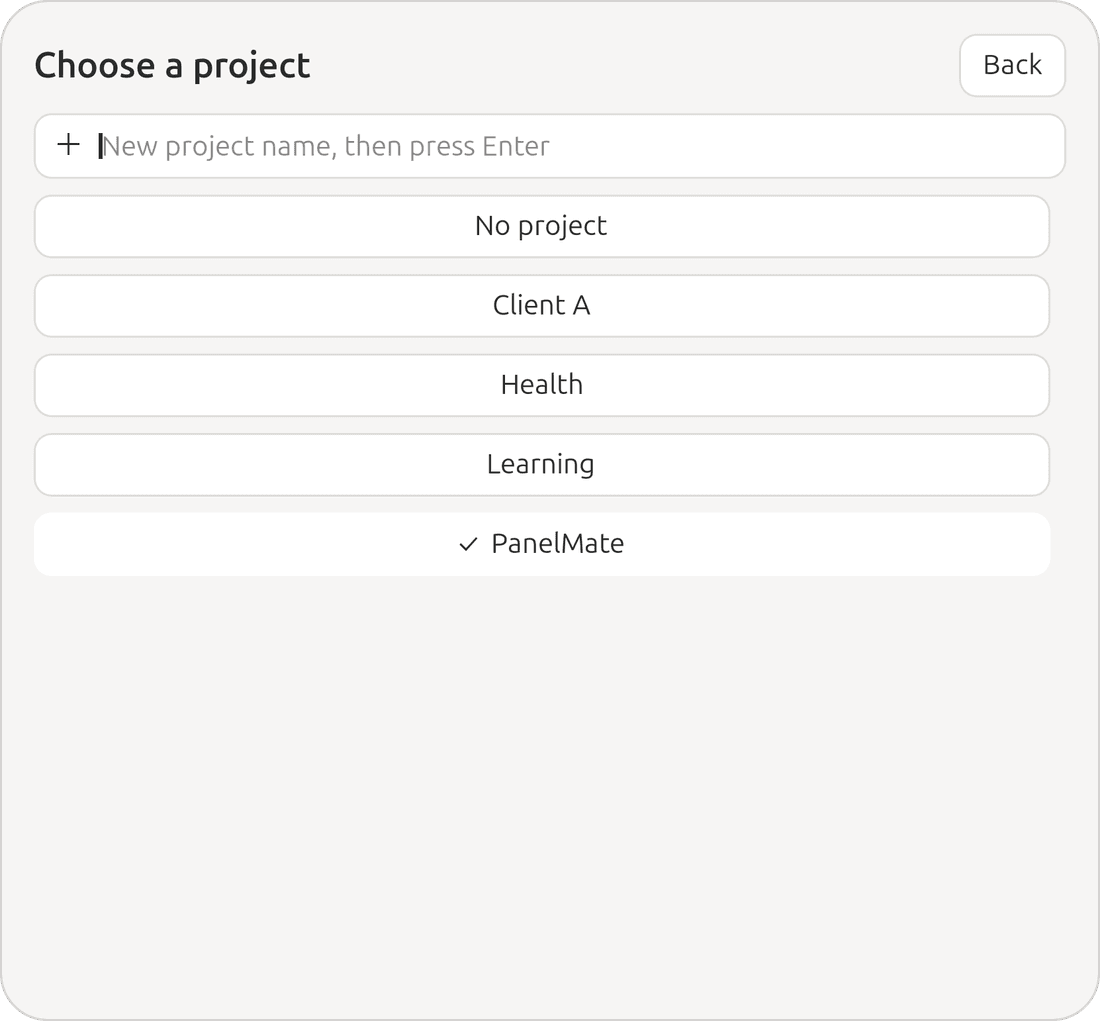
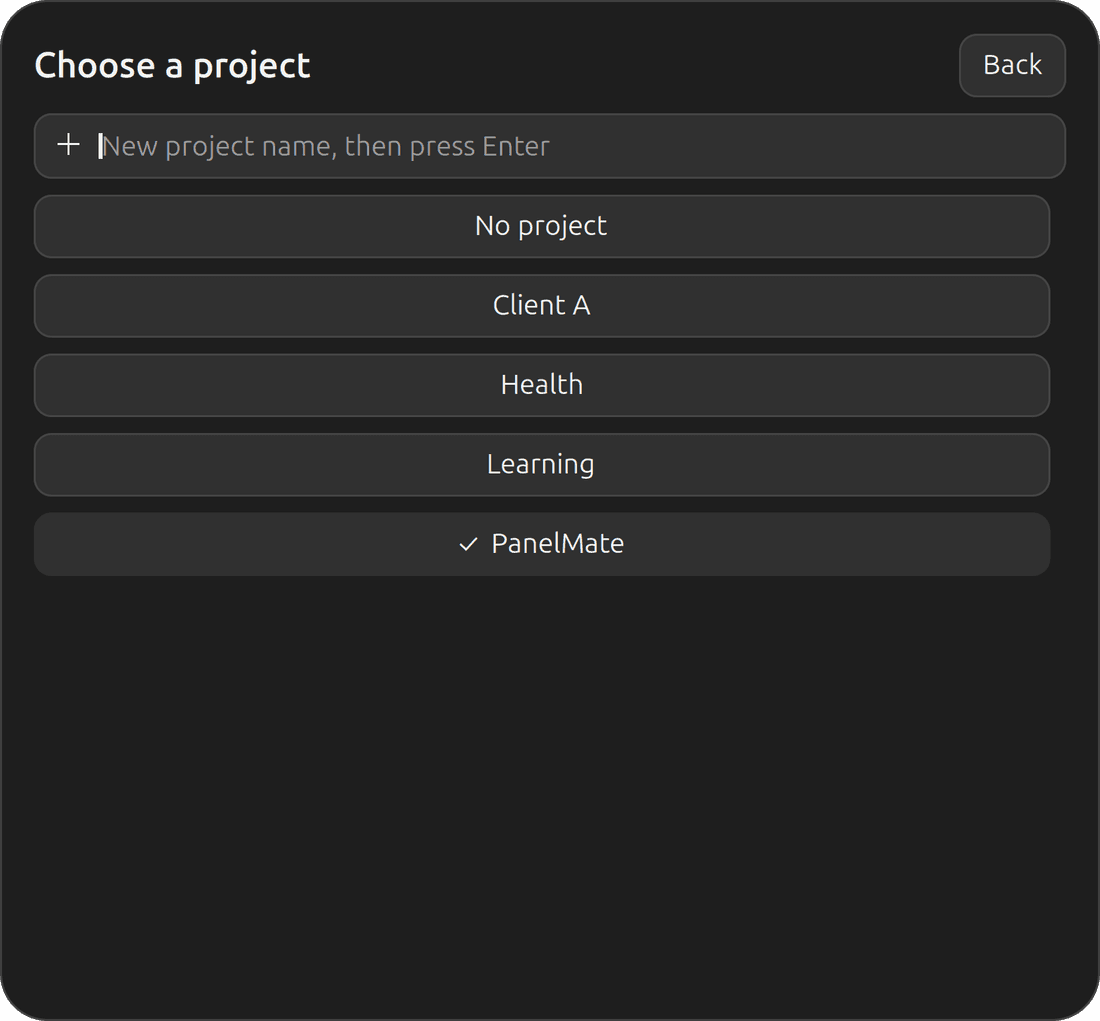
Projects
Make a project in one line and file sessions under it.
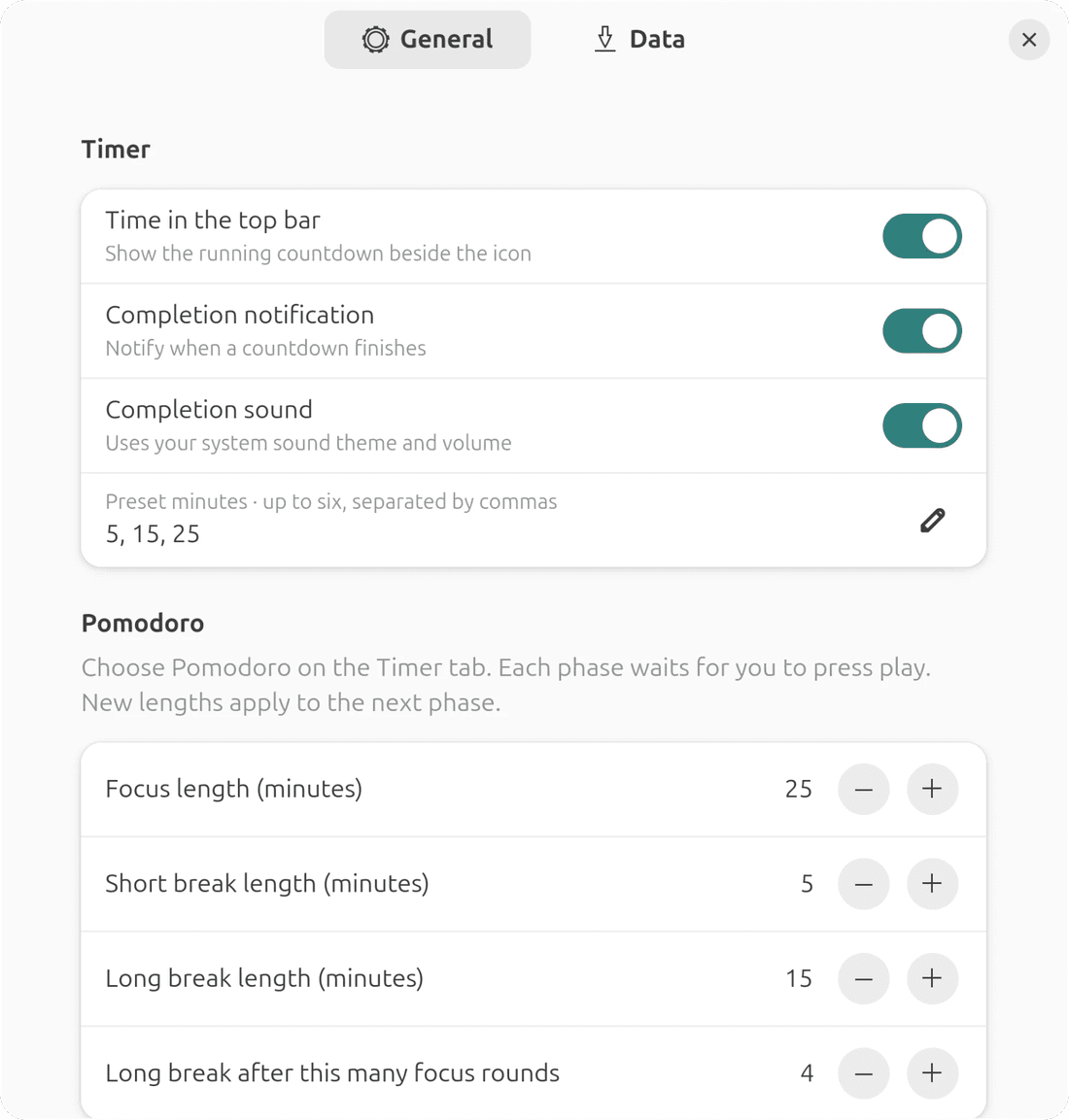
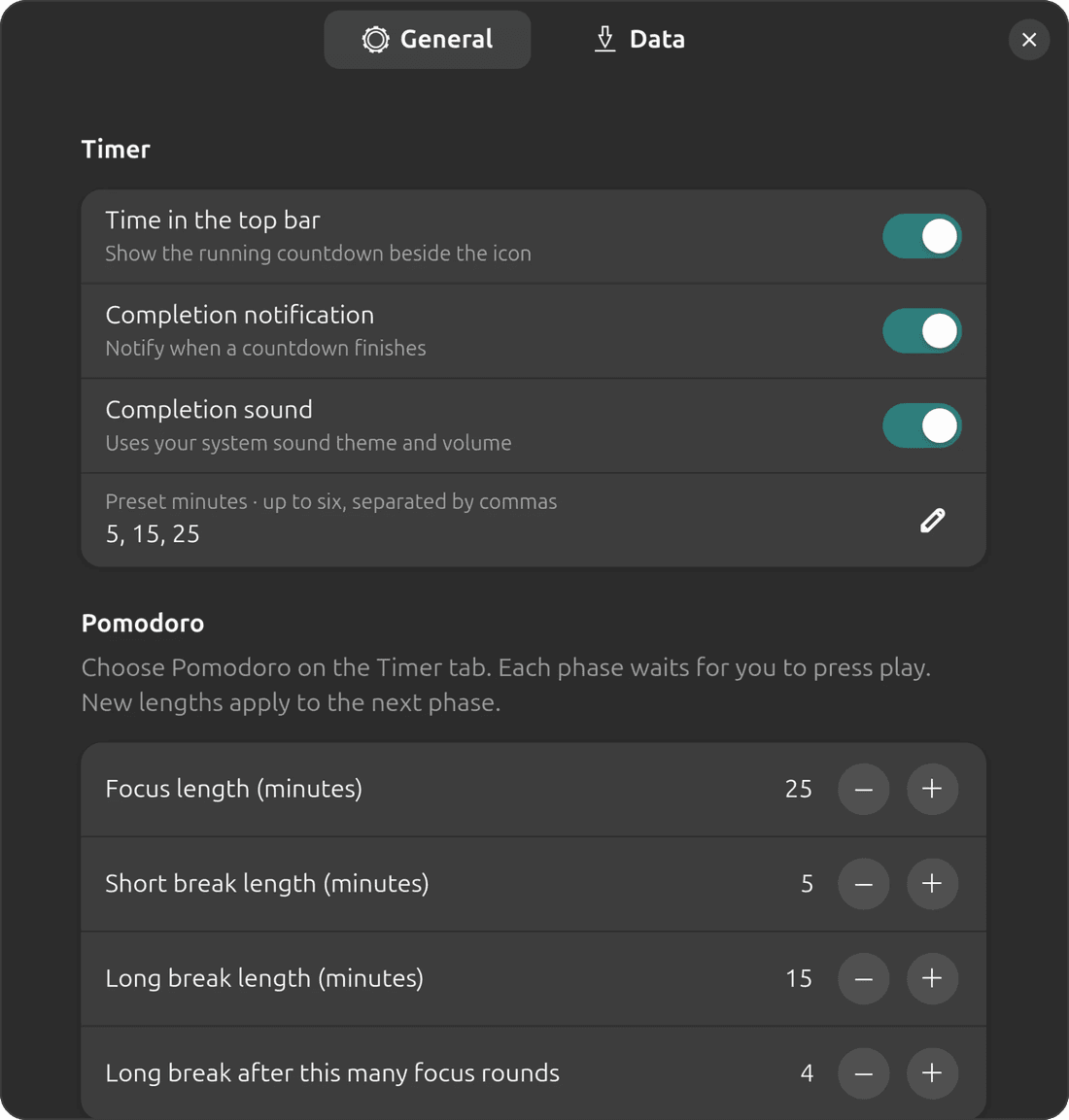
Preferences
Alerts, presets, Pomodoro lengths, shortcuts and data.
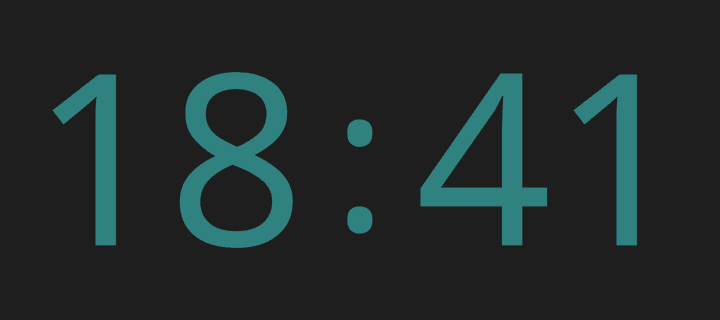
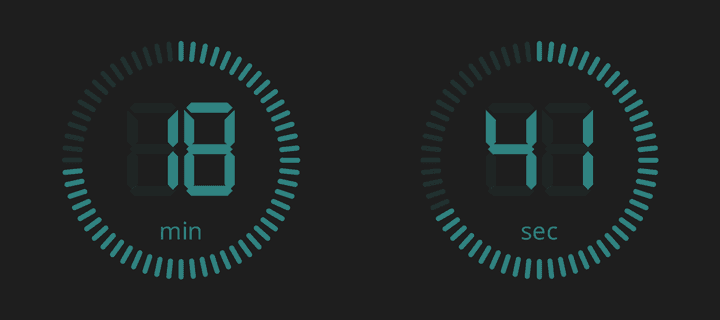
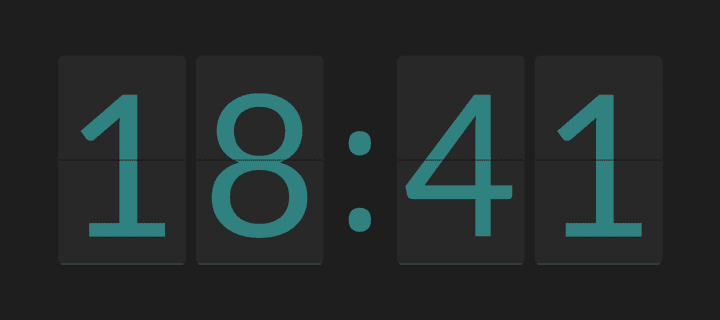
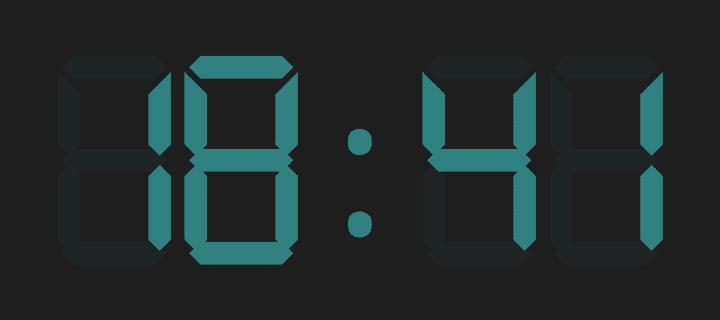
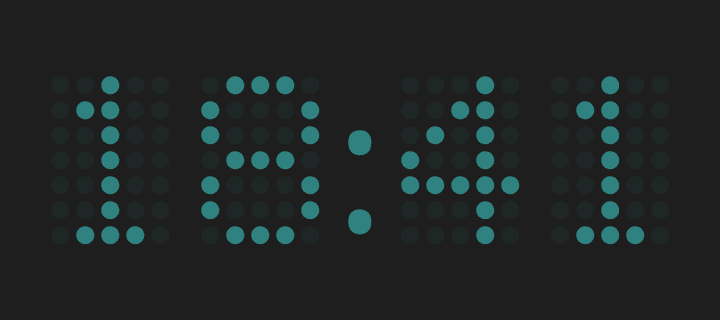
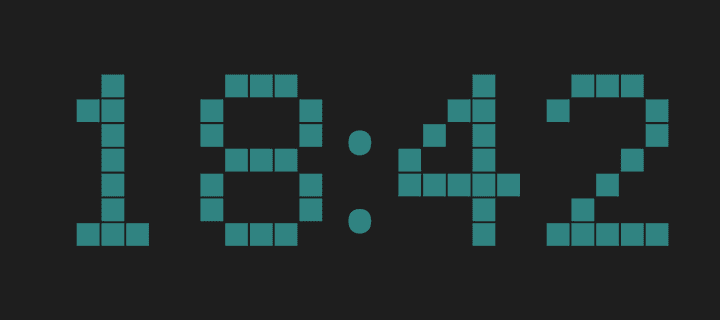
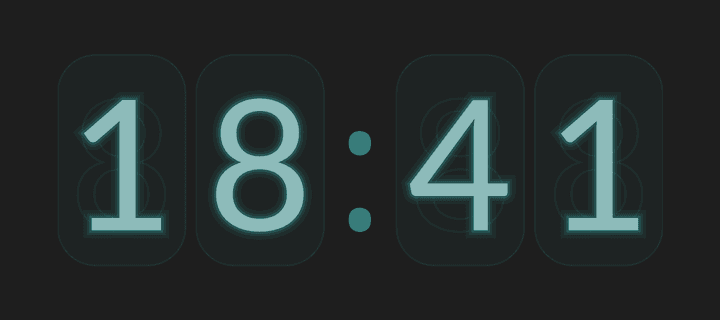
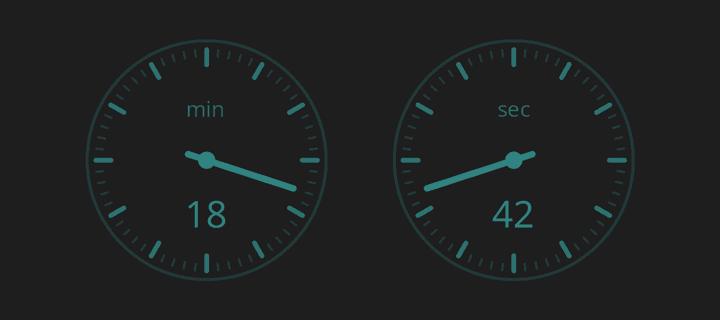
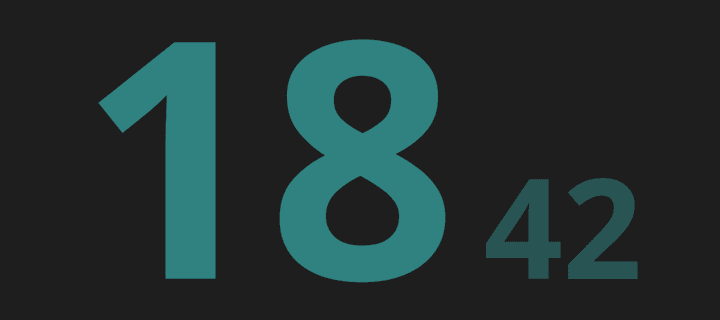
Fifteen clock faces. Here are ten.
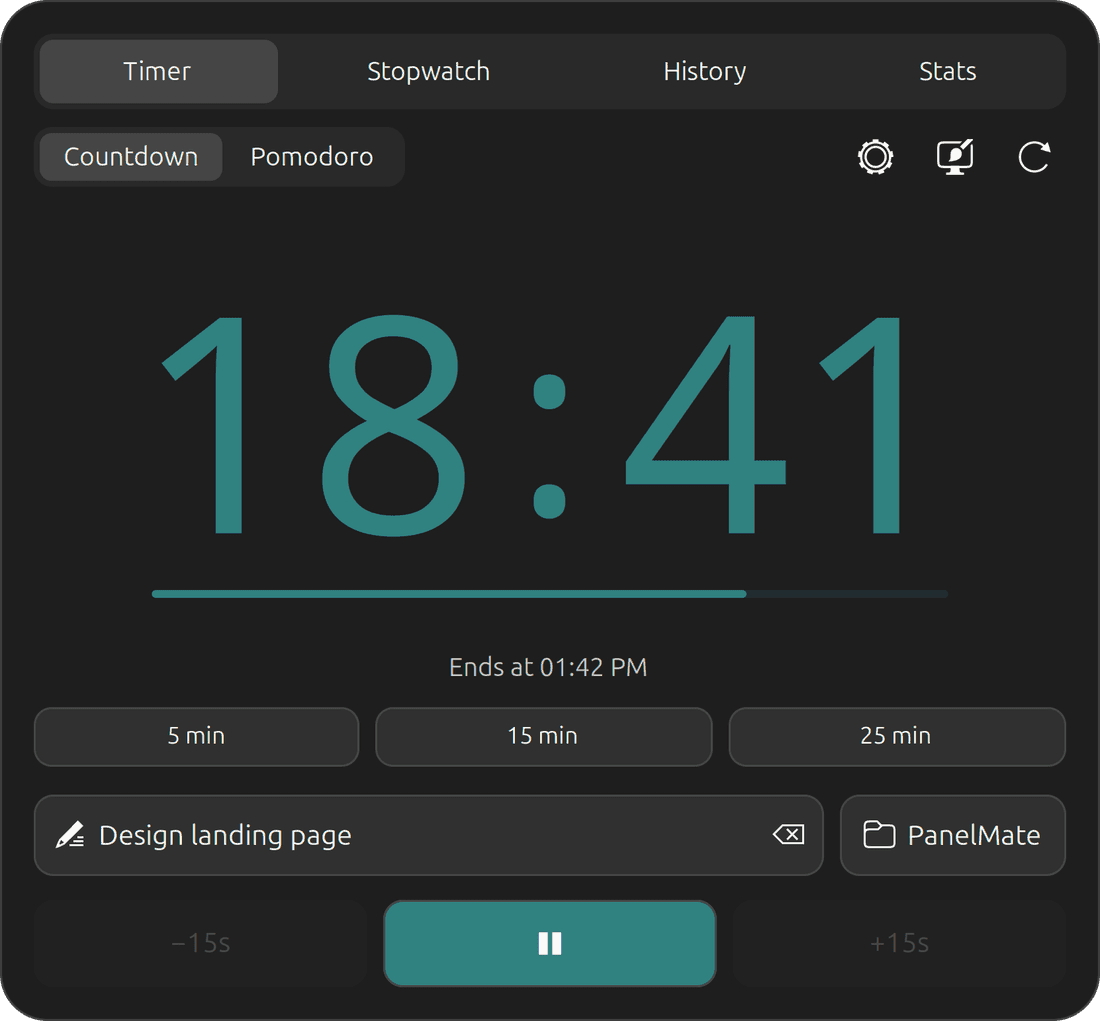
Every style follows your accent color and switches with your light or dark appearance.
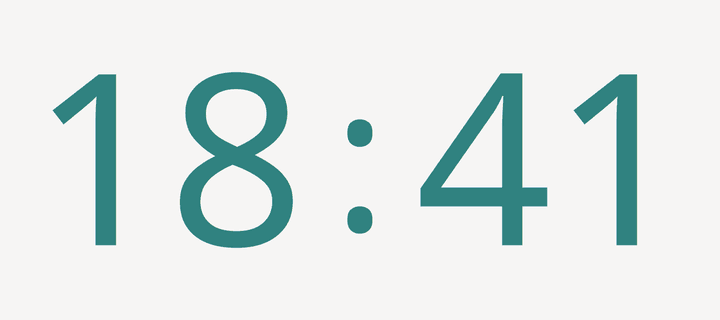
Classic 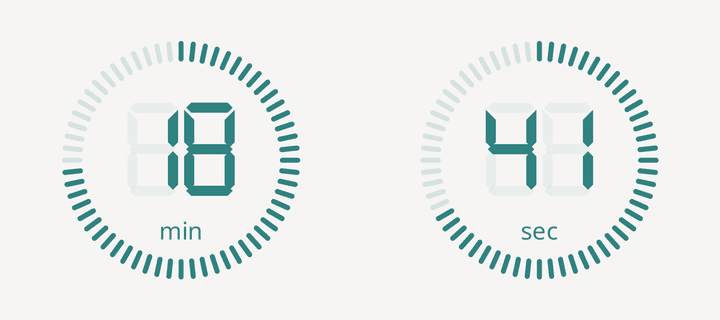
Tick ring 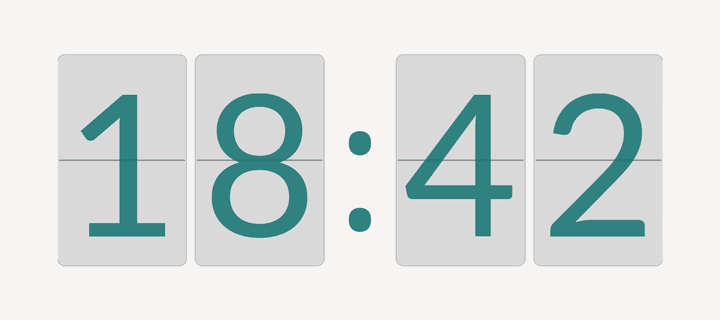
Recessed 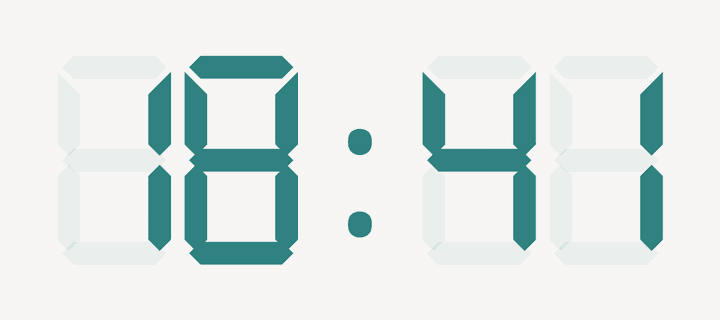
Digital 
Dot matrix 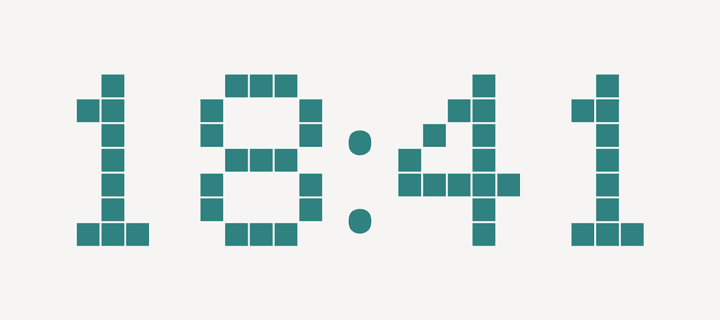
Pixel 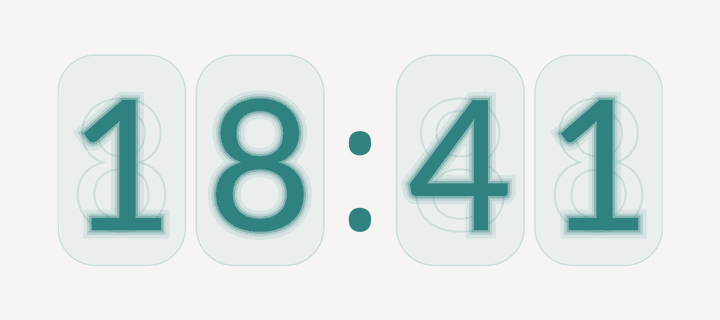
Nixie 
Outline 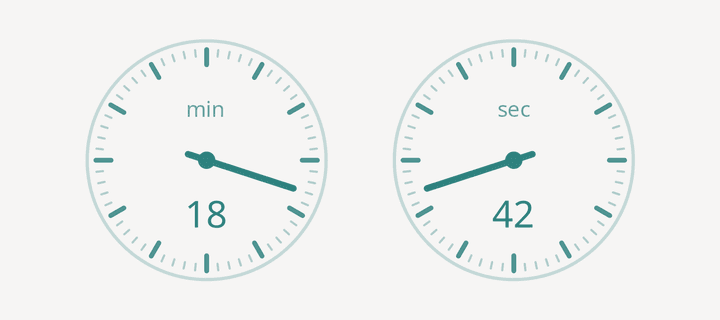
Dial 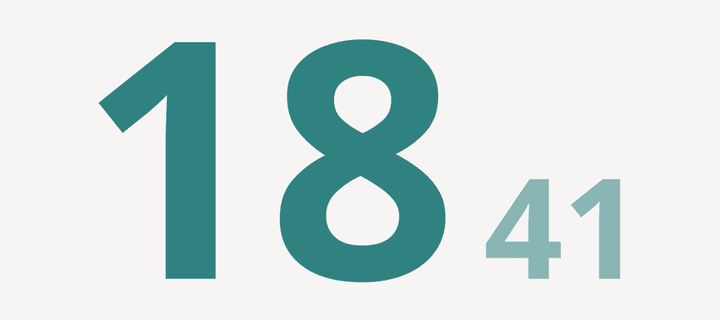
Headline

One session, start to finish.
- 01
Name it
Type what you’re working on and file it under a project.
- 02
Start it
Press play, or Super + Alt + Space from any tab.
- 03
Finish it
A notification and sound tell you it’s done. Nothing starts until you say so.
- 04
Look back
Every session lands in History and Stats, filterable by project.
Everything a focus session needs. Nothing it doesn’t.
Pomodoro, without the nagging
Keyboard first
At home in GNOME
Your data, your files
Countdowns on your terms
History you can act on
Stats that don’t round you down
Tasks and projects
Install in under a minute.
Download the bundle, run the installer, and the PanelMate icon appears in your top bar.
Download PanelMateVersion 1 · ZIP, 474 KB · Free
| Ubuntu | GNOME Shell |
|---|---|
| 24.04 LTS | 46 |
| 26.04 LTS | 50 |
- 1
Unzip the bundle
Extract it into a folder called panelmate.
- 2
Run the installer
It installs the extension, its settings and bundled fonts for your user only.
- 3
Enable and log back in
Enable PanelMate, then log out and in once so GNOME loads it.
$ unzip panelmate-gnome.zip -d panelmate$ cd panelmate && ./install.sh$ gnome-extensions enable panelmate@local.widgetQuestions, answered.
Which systems does PanelMate support?
GNOME Shell 46 (Ubuntu 24.04 LTS) and GNOME Shell 50 (Ubuntu 26.04 LTS). It’s a native extension. There’s no separate app to install or keep running.
Where is my data stored?
On your machine, in GNOME settings. PanelMate has no account and makes no network requests. Fonts are bundled, too. You can export history as CSV or save a JSON backup from Preferences → Data.
Do Pomodoro breaks start automatically?
No. When a phase ends, the next one is loaded and waits for you to press play. You can also start it from the completion notification, or skip a phase entirely.
What counts towards Stats and the daily goal?
Completed countdowns and saved stopwatch sessions. Sessions still running aren’t counted. The daily goal also leaves out Pomodoro breaks. Records are kept for up to two years or 20,000 sessions.
Why do I need to log out after installing or updating?
On Wayland, GNOME Shell caches extension code for the whole session. Turning the extension off and on doesn’t reliably load new code, so log out and back in. The installer never restarts your desktop.
I used an earlier version. Will I lose anything?
No. The installer migrates your previous settings and history once, then disables the old copy. To remove PanelMate, run ./uninstall.sh from the same folder.